Pabbly vs. Make vs. Zapier: Differences, Features & Pricing
Marvin compared Pabbly, Make, and Zapier, weighing Zapier's 7,000+ integrations against Pabbly's budget pricing and Make's visual workflows for complex automations.
.avif)

I’ve built automations with Pabbly, Make, and Zapier, and each one has its strengths.
↳ Zapier is beginner-friendly but gets pricey fast.
↳ Make offers visual workflows but has a steeper learning curve.
↳ Pabbly is affordable but lacks depth for complex use cases.
In this guide, I’ll break down Pabbly vs Make vs Zapier across features, flexibility, pricing, and use cases, so you can pick the right tool for your workflow in 2025.
Pabbly vs. Make vs. Zapier: TL;DR
| Tool | Best For | Pricing Model | Visual Builder | API/Webhook Support | Complexity |
|---|---|---|---|---|---|
| Pabbly | Budget-friendly basic automation | One-time & recurring | Limited | Yes | Low |
| Make | Complex, conditional workflows | Usage-based | Advanced | Yes (strong) | High |
| Zapier | Fast, user-friendly app connections | Usage-based | Basic | Yes | Medium |
1. Pabbly: Best for Budget-Friendly Basic Automation
What Does It Do?
Pabbly Connect lets you create simple, affordable, no-code integrations across popular tools. It helps you connect over 1,000 apps and automate basic workflows without heavy monthly fees.
Who Is It For?
Best for small businesses, solopreneurs, and startups who want to automate routine tasks and save time without a large upfront investment or ongoing subscription costs.

Pabbly gives you a straightforward way to set up multi-step workflows. You can easily connect apps, apply basic filters, and route data where you need it to go. I was able to quickly link my form submissions to a Google Sheet and then trigger an email, all in just a few clicks.
Its one-time payment option stands out, making it very cost-effective for users who want to avoid recurring bills. This makes Pabbly an attractive choice if you're looking for a dependable automation tool without breaking your budget.
Pabbly's interface is beginner-friendly. It helps you get started with automation quickly, even if you have no prior experience.
Check out this Pabbly Connect Review, where I’ve broken down its features and pricing in detail.
Pros
- Very cost-effective, with one-time payment options available.
- Easy-to-use interface for beginners.
- Offers unlimited workflows with paid plans.
- Connects with over 1,000 apps.
Cons
- Offers limited customization compared to more advanced tools.
- Its visual editor provides less flexibility.
- App updates can be slower.
Pricing
- Free Plan: Limited tasks/month.
- Starter: $19/month (or a one-time fee option available).
- Business: $49/month.
- Enterprise: Custom pricing.
Pabbly Connect is a solid, budget-conscious choice if you need simple, reliable automations without a steep learning curve or high monthly costs. It works well for straightforward tasks, allowing you to automate efficiently and focus on your core business.
2. Make (formerly Integromat) – Best for Visual Workflow Automation
What Does It Do?
Make lets you build complex automations across 1,500+ apps using a visual drag-and-drop builder. You can transform data, apply conditions, schedule tasks, and trigger workflows, all without writing a line of code.
Who Is It For?
Great for operations teams, agencies, and SaaS startups who want more flexibility, control, and logic-based automation than what basic tools like Pabbly or Zapier provide.

Make gives you full control over how your workflows run. You can map out steps visually, add conditional branches, clean data, and handle errors, all in one place. I used it to automate lead routing based on geography and deal size, and the visual builder made it easy to tweak without breaking anything.
It supports multi-step workflows, data formatting, and time-based scheduling, so it's perfect for teams automating internal operations, syncing tools, or managing complex client setups.
You can clean spreadsheet rows, trigger sequences from form submissions, or build paths based on user behavior. I found this useful when syncing CRM data with product usage logs.
With over 1,500 integrations, Make supports everything from Gmail to Airtable, Slack, Salesforce, and PostgreSQL, giving you the flexibility to connect your full stack.
Pros
- Visual builder simplifies complex workflows.
- Supports advanced conditional logic and data processing.
- Works with over 1,500 apps and services.
- Offers high operation limits even on lower-tier plans.
- Great for power users and visual thinkers.
Cons
- Steeper learning curve for advanced logic.
- Can sometimes lag on very large or data-heavy scenarios.
- Its user interface can be complex for beginners.
Pricing
- Free: 1,000 operations/month, 100MB data.
- Core: ~$9/month – 10,000 operations.
- Pro: ~$16/month – 100,000 operations.
- Teams: ~$29/month – 1M operations + team access.
- Enterprise: Custom pricing based on operations.
You can learn more about Make’s pricing here.
Make is a powerful, visual-first automation tool that’s ideal if you’ve outgrown basic logic and want more control. For teams that need custom workflows, smart branching, and deep integration, Make offers serious power without the price tag or technical friction.
3. Zapier – Best for Fast App Automation
What Does It Do?
Zapier lets you connect over 6,000 apps to automate tasks like CRM updates, spreadsheet syncing, or email triggers, without writing code. You build workflows called Zaps using "if-this-then-that" logic that fires based on actions across tools.
Who Is It For?
Great for solo founders, marketers, sales teams, and support staff who want quick, no-code automation to eliminate repetitive tasks and connect everyday tools in minutes.
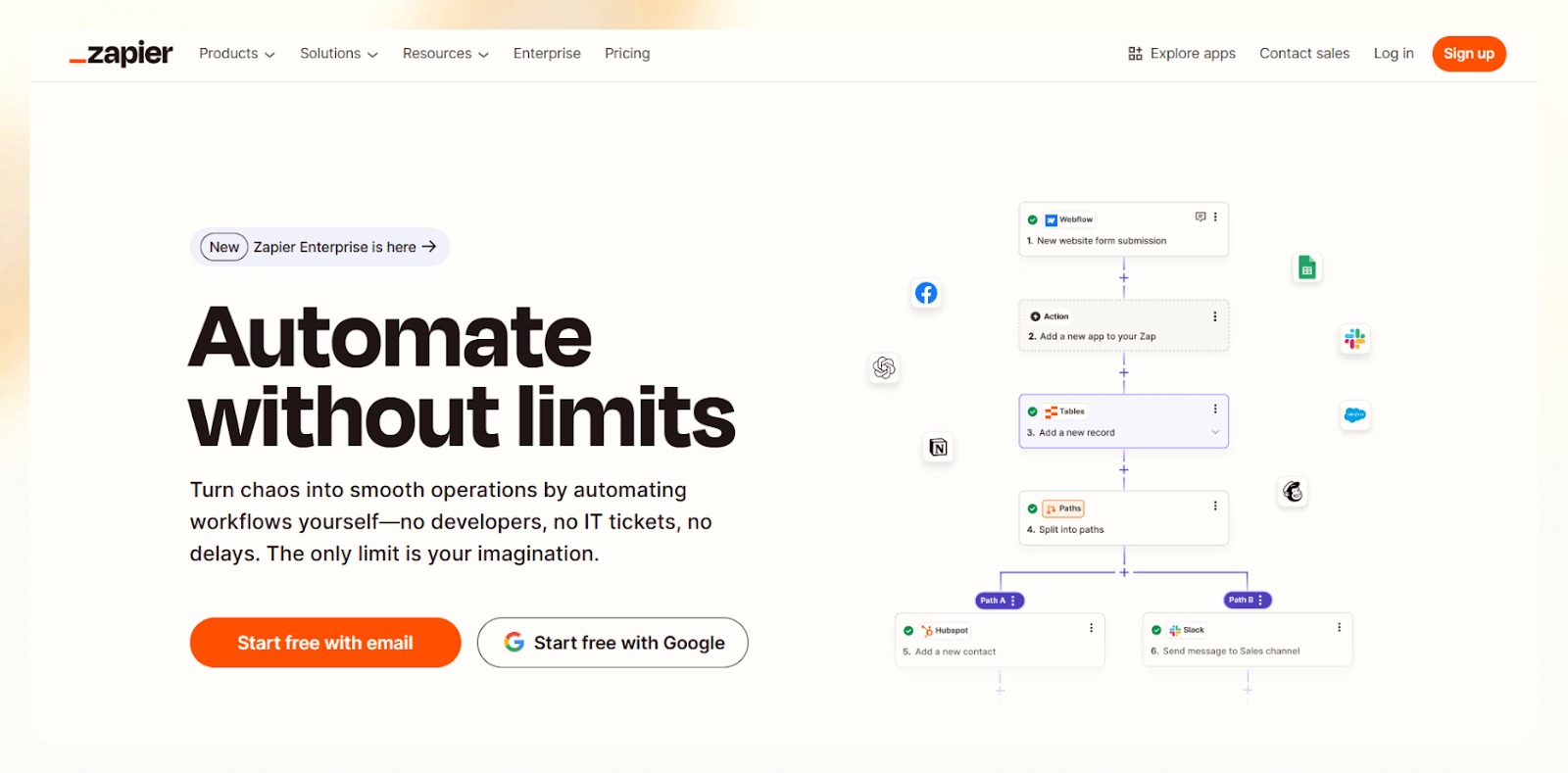
Zapier helps you create workflows triggered by actions like form submissions or new calendar events. From there, it runs automations like sending emails, posting in Slack, or logging data in Google Sheets. I used it to sync lead data between Typeform, HubSpot, and Gmail, and it took less than 10 minutes to set up.
You can chain together multi-step Zaps with filters, delays, or branching paths. This makes it easy to add some logic without needing developer help. For unsupported tools, you can use webhooks or connect APIs directly.
Zapier’s strength is its simplicity and speed. I recommend it often for people who do not want to mess with logic trees or visual builders.
With over 6,000 supported apps, you will almost always find what you need. Whether you are automating sales alerts, support tickets, or marketing emails, Zapier fits right in.
Pros
- Quick setup, even for beginners.
- Works with over 6,000 tools out of the box.
- Includes filters, delays, and paths for basic logic.
- No-code builder offers strong reliability.
- Ideal for fast, MVP-style automation.
Cons
- Less flexible than Make for logic-heavy workflows.
- Complex Zaps can be harder to troubleshoot.
- Pricing climbs as task volume increases.
Pricing
- Free: 100 tasks/month, 5 Zaps, 15-minute update.
- Starter: $19.99/month – 750 tasks, multi-step Zaps.
- Professional: $49/month – 2,000 tasks, 2-minute updates.
- Team: $69/month – 50,000 tasks + collaboration.
- Company: $99/month – 100,000 tasks + admin tools.
Zapier is the fastest, most beginner-friendly automation tool. If you want something reliable that works with nearly every app, and you do not need deep customization, Zapier helps you move fast, automate smartly, and focus on your work, not workflow logic.
{{templates}}
Feature-by-Feature Comparison
Here is how Pabbly, Make and Zapier stack against each other in terms of features.
| Feature | Pabbly | Make | Zapier |
|---|---|---|---|
| App Integrations | ~1,000 | 1,500+ | 6,000+ |
| Visual Workflow Builder | Basic | Advanced (drag-drop) | Limited visual view |
| Conditional Logic | Limited | Full (with filters) | Yes (via Paths) |
| Webhook/API Support | Yes | Yes (advanced) | Yes |
| Built-in Apps (Formatter, etc.) | Yes | Yes | Yes |
| Pricing | One-time + Recurring | Usage-based | Usage-based |
| Ease of Use | Easy | Moderate to Hard | Easy |
| Support & Docs | Good | Excellent | Excellent |
Pricing Breakdown
Which of these gives the best value for money? This comparison will help you decide:
| Plan Level | Pabbly | Make | Zapier |
|---|---|---|---|
| Free Plan | Yes, limited tasks/month | Yes, 1,000 ops/month | Yes, 100 tasks/month |
| Starter | $19/month (or one-time fee) | ~$9/month (limited ops) | $29.99/month |
| Business | $49/month | Scales based on operations | $73.50/month and up |
| Enterprise | Custom | Custom | Custom |
When to Choose What?
Choose Pabbly if:
- You need affordable, unlimited workflows.
- Your automation tasks do not involve complex logic.
- You want an option without a monthly subscription.
Choose Make if:
- You need full control over complex workflows.
- You use APIs or need real-time syncing.
- You are technical or have developer support.
Choose Zapier if:
- You want quick automation with many app connections.
- Your workflows are straightforward.
- You prefer a polished user interface over visual logic.
Want Something Better Than Pabbly, Make & Zapier?
Still stuck between Zapier vs. Pabbly vs. Make?
Try Lindy, a smarter, more affordable AI automation platform.
Lindy gives you full control. You’ll find plenty of pre-built templates and there are loads of integrations to choose from.
It lets you build your own AI agents to automate lead generation, sales, CRM updates, meetings, follow-ups, and more, without any coding.
Here’s what Lindy can do for you:
- Update your CRM automatically: Fill in missing fields and sync data across HubSpot, Salesforce, and more.
- Record and summarize meetings: Lindy joins Zoom calls, takes notes in Google Docs, and sends action items to Slack or Gmail.
- Automate outreach and follow-ups: Run AI-driven campaigns that react to lead engagement, not just templates.
- Coach your sales team: Analyze sales calls with frameworks like MEDDPICC and give real-time feedback.
- Enrich leads on autopilot: Pull prospect data from tools like People Data Labs, no manual research needed.
- Trigger Slackbots, schedule meetings, and send emails without lifting a finger.
Get started for free and automate up to 400 tasks/month.
{{cta}}
Frequently Asked Questions
1. What is the main difference between Pabbly and Make?
Pabbly Connect is built for straightforward, rule-based, 1- or 2-step automations, whereas Make is designed for complex, multi-step workflows that feature loops, routers, and conditional logic.
So, Pabbly is for simple data transfers from one app to another, and Make is more for setting up specific rules for which data is transferred and where it goes, such as a pinpointed column in a database.
2. What is the best tool for small businesses?
Pabbly Connect, Zapier, and Make are all automation platforms that are suitable for small businesses — it just depends on your automations needs. Pabbly Connect is ideal for those with minimal automation needs on a budget. Zapier provides one of the easiest workflow builders with the most integrations, but the price point is higher per automation.
Make lets you create more complex automations with conditional logic but requires some time to learn. It is a good Zapier and Pabbly alternative for those who need more control over their automations.
3. How does Lindy differ from these automation tools?
Lindy is an AI automation platform that creates autonomous agents, known as Lindies, capable of handling tasks from start to finish. We built Lindy with the primary purpose of creating AI automations, such as inbox organization, lead generation, and meeting scheduling.
For automating tasks, Lindy is more cost-effective when compared to automation tools like Zapier, Pabbly, and Make.
4. What kind of workflows can’t Zapier, Pabbly, or Make handle well?
These tools don’t work well for real-time decision-making, AI-based tasks, or cross-functional workflows requiring human-like reasoning. If you need agents that can think, adapt, and take end-to-end actions across tools, a platform like Lindy is a better fit.
5. Can I migrate my workflows from Zapier or Make to another platform?
Most platforms don’t offer one-click migration, but you can manually replicate the steps using exported CSVs, API calls, or by recreating the workflows. Lindy offers pre-built templates and onboarding help if you’re switching from other tools to simplify the process.
6. How should I choose between visual and linear automation builders?
If you prefer mapping out steps visually with conditions, Make is best. Zapier and Pabbly use a more linear logic, which is easier for beginners. If your workflow branches out often or changes dynamically, a visual builder will help you avoid confusion and errors.
7. What if my tool isn’t supported by any of these platforms?
All three tools support webhooks and custom API calls, which let you integrate unsupported tools manually. Make has the most robust API handling, followed by Zapier. Lindy also supports API-based triggers and actions, but with more AI automation built-in.
8. Are these automation platforms secure for business use?
Yes. Zapier, Make, and Pabbly offer encryption, OAuth logins, and follow GDPR practices. However, enterprise-grade audit trails, role-based access, and SOC2 compliance are available only on higher plans. Review your compliance needs before choosing a plan or provider.
9. Do these platforms support mobile or desktop apps for workflow management?
Zapier offers a mobile app with basic control and alerting. Make and Pabbly do not have native mobile apps but can be accessed via browser. If mobile control is a priority, Zapier is the easiest. Lindy agents can also be triggered via Slack or Gmail from mobile.
10. What’s the next step after setting up your first workflow?
Once your first automation runs successfully, monitor the results, check error logs, and optimize triggers. Gradually add filters, delays, or paths to refine it. Then, document your workflows for your team and explore adding AI capabilities using tools like Lindy to level up.