


15+ AI Personal Assistants Tested, These Are My Top 10
Marvin tested 15+ AI personal assistants including ChatGPT, Gemini, and Reclaim.ai, ranking the top 10 for task management, scheduling, and email handling in 2026.


Right now, my inboxes have racked up over 50,000 unread emails (yes, that's really my inbox). And I clean them regularly, I swear. But this is the recent accumulated total across personal, work, and side projects.
Yours is probably similar? Or worse…?

The same thing happens with tasks. They keep piling up, like groceries, personal errands, social outings, and most importantly, focus hours at work. Juggling them feels like a circus clown juggling multiple balls in the air, only to drop all of them one by one, ruining the act.
And then comes the most draining part of the week. Meetings. A half-hour meeting cannot be that bad, right? You know it as well as I do that it’s not REALLY half an hour. You need at least 40-50 minutes beforehand to prepare, and then 20 minutes after the meeting to recharge.
Before I realized, I’d spent 3-4 hours of my day on these tasks without spending a single minute on my core work.
So, I searched for AI personal assistants that’d help me offload these tasks.
I found 15+ tools that felt like lifesavers and decided to test them all. I used them for my daily meetings, emails, research, and other tasks to gauge their usefulness. I shortlisted the top 10 tools that helped me save more than an hour every day.
Here’s what you can expect from this article:
- What is an AI personal assistant?
- 10 best AI personal assistants for 2026
- How I tested and compared these tools
- Top tools for popular use cases
Let’s first define an AI personal assistant.
What is an AI personal assistant?
An AI personal assistant is a software or an app that uses artificial intelligence to help you with everyday tasks. These tasks can be ideating, researching, making notes, managing emails, or scheduling.
Using an AI personal assistant lets you offload tedious or time-consuming tasks, so you can focus on your core work. To streamline your daily toolkit even further, explore our list of top work apps for modern professionals.
For example, a freelance marketer needs to research the competitors, uncover trends, and compile strategy ideas. Using AI, he can reduce research time from a few hours to minutes, helping him dedicate more time to strategy and execution.
You can categorize AI personal assistants into two broad types. These are:
- Work assistants: These handle mostly your work tasks like meeting notes, calendars, emails, and more. Tools like Shortwave, Zapier, and Otter make you more productive and focused. For a broader range of software to streamline your workflow, explore our list of the best productivity apps.
- Personal, general-purpose assistants: Tools like ChatGPT, Siri, Gemini, and Reclaim work best for tasks like research, content creation, home controls, scheduling, and taking action across your apps.
AI personal assistant categories I considered
I wanted the list to cover tools across different users, applications, and scenarios. These are the categories I considered:
Admin work
Examples: Zapier, Make
You can use these assistants for day-to-day admin work, like following up, sending reminders, updating information across apps, and more. These tools help you save time and effort on repetitive work. If you want a dedicated digital assistant to manage administrative tasks, explore our guide to the best ai secretary.
Calendar and task management
Examples: Reclaim, Motion, Clockwise
For users with packed calendars and never-ending to-do lists, these tools ease that workload. They protect your focus hours and prioritize tasks depending on your schedule and urgency. Using an ai planner can streamline this process by automatically mapping out your daily schedule and priorities.
Email and communication
Examples: Shortwave, Superhuman, SaneBox
If you struggle with hundreds of emails, a cluttered inbox, and missed communication, a few AI personal assistants can help you manage these with ease.
Meetings and notes
Examples: Otter, Granola, Fathom, Fireflies
These AI personal assistants excel at managing back-to-back meetings, summarizing them, extracting action items, and creating detailed notes you can send to your teammates. If you attend a lot of meetings and take notes, these tools can save a few hours every week.
Information management and recall
Examples: Mem, Siri, Notion, Gemini, Obsidian
Almost every professional deals with prolonged research, information overload, and messy notes. AI assistants can help you manage and find information quickly.
The 10 best AI personal assistants for 2026
After considering and testing 15+ AI personal assistants, I shortlisted the ones that performed the best during my hands-on time with them. They offer the most value for different users across use cases. Here are the 11 tools you should consider:
- Zapier: Best for automating simple, recurring workflows
- Gemini: Best for Google users who need AI assistance
- ChatGPT: Best generalist AI personal assistant tool
- Otter: Best for searchable meeting transcripts and summaries
- Shortwave: Best for email management and quick follow-ups
- Reclaim: Best for protecting focus hours and calendar management
- Saner.AI: Best AI help for ADHD users with planning and notes
- Notion: Best for AI assistance within Notion’s workspace
- Siri: Best AI assistant inside the Apple ecosystem for light tasks
- Pi: Best for human conversations and light personal tasks
1. Zapier: Best for automating daily, recurring workflows
Zapier lets you create multi-step automation workflows without writing code. It connects to more than 9,000 apps and lets you choose the AI of your choice to automate tasks.
The simple layout helped me get familiar with it quickly. To create a workflow, you can either describe it to the AI or build one using the drag-and-drop workflow builder. You can then turn that workflow into a guided template.

I deal with a lot of emails across multiple personal inboxes. I asked Zapier to scan my emails for Slack notifications, read those conversations in Slack, and summarize them for me.

The AI copilot nailed the workflow in the first attempt, so I didn’t have to play around with the workflow builder. Zapier asked me about the destination of the summaries. I asked it to share them via email. I then received a well-defined workflow that I could edit in the visual builder.
One thing that bugged me about Zapier was that I had to connect all the apps it needed for a workflow manually.
Apart from Zaps, you can also create other automation elements, like Tables for storing data, Agents that act as AI assistants, Forms that trigger automation from the responses, and Chatbots that use AI to answer questions.
I tested the Call Follow-Up Email Assistant. It’s a ready-to-use agent where you just need to connect your meeting transcript tool, Fireflies here, and your Gmail. The Zapier agent will understand the meeting and draft a follow-up email depending on the situation.

In my opinion, Zapier’s different offerings aren’t that different from each other. You can simply ask the AI Copilot to create a Zap that matches the pre-built Agents, Tables, or any other utility you want. It’s that easy.
Key features
- No-code workflow automation across apps
- AI Copilot that lets you create workflows using a natural language description
- Create templates for common, recurring workflows
- Agents and Chatbot that can handle tasks and questions
- Forms that can trigger automation
Pros
- 9,000+ integrations for teams that use niche or multiple apps
- Intuitive interface suits non-technical users and
- Visual workflow builder to edit and customize workflows
Cons
- A barely usable free plan
- Agents can be a little difficult to set up and use
Pricing
- Free plan with only two-step Zaps
- Paid plans from $29.99/month, billed monthly
2. Gemini: Best for Google users who need on-device AI assistance
Gemini is Google’s AI assistant that works across Google apps and devices. You can also use it on the browser as a text-based AI assistant.

I wanted to trade two of my old Intel-powered MacBooks for a new M5 MacBook Air. Because they were too old, they didn’t have the feature that helps you easily erase all your data, like the newer MacBooks. So, I asked Gemini for help.
I wanted guidance on how to safely erase all the sensitive information from these laptops so they are ready to be traded in. Gemini was quick to ask about the model year and specifications. It understood how specs and year or production affect the reset process.
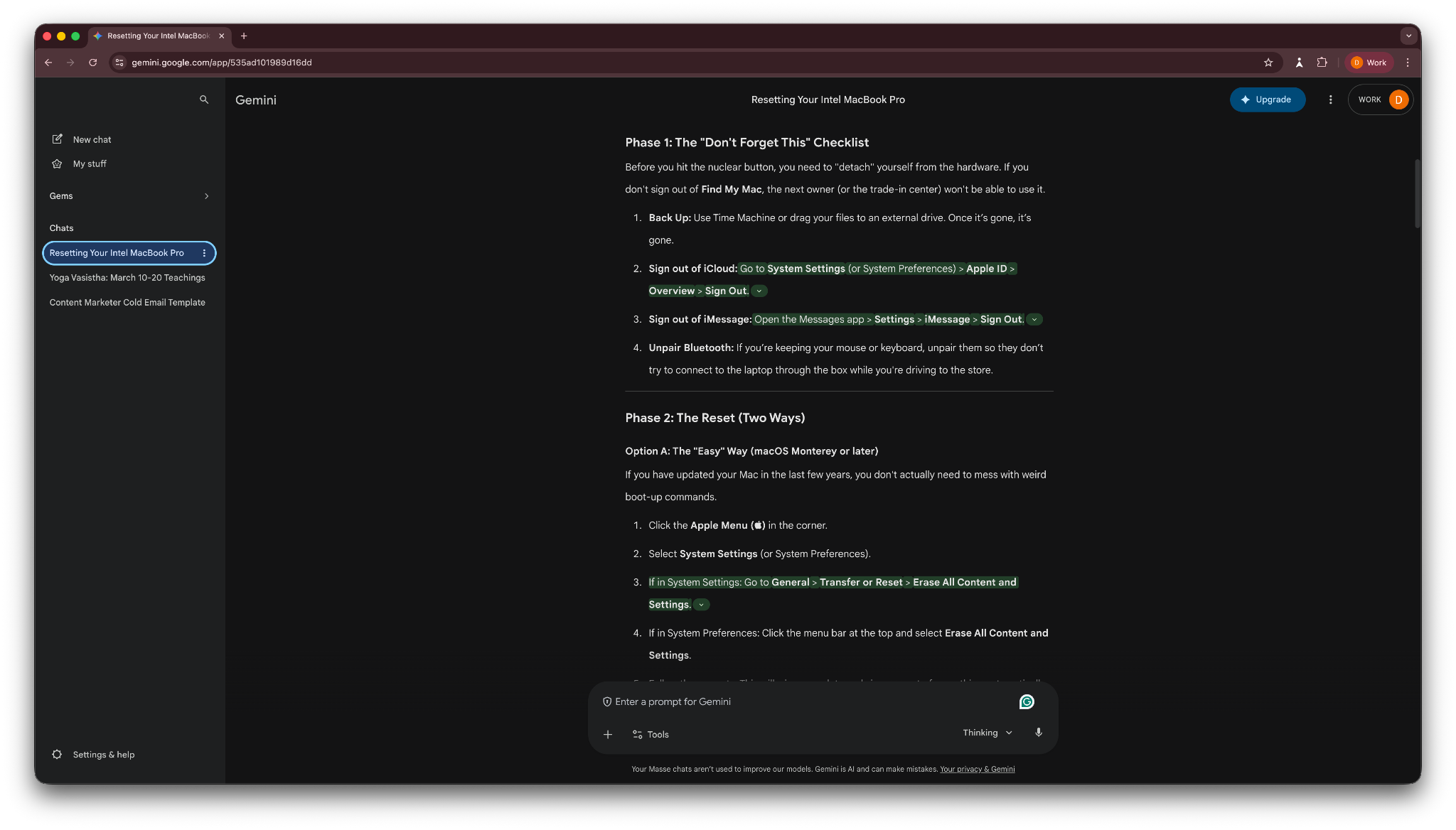
The first MacBook was a 2018 model with no T2 security chip, while the second MacBook was a 2020 model with the T2 chip. After analyzing this information, Gemini quickly returned step-by-step instructions to reset each laptop.
However, Gemini isn’t as capable as other AI email assistants inside Gmail. I wanted to know about the Slack mentions in the past week, so I asked Gemini to find and summarize them for me. Gemini couldn’t do it. Instead, it suggested a workaround to me.

Gemini is exceptional at picking up voices and languages. It reasons confidently and correctly for the most part, and can help Android users with simple tasks across their smartphones.
Key features
- Understands voice inputs in different languages and dialects
- Creates music by selecting tracks and remixing them with simple prompts
- Takes action across the Google ecosystem
- Guided learning, if you want to learn complex concepts quickly
- AI suggestions for weather, email writing, scheduling, and more
Pros
- Quick and easy to set up and use
- Best AI for Google users and smart homes
- Versatile and suits multiple use cases
Cons
- Less capable outside of the Google ecosystem
- Won’t handle repeat automation like Zapier
Pricing
- Free plan with limited usage
- Paid plans from $4.99/month, billed monthly
3. ChatGPT: Best generalist AI personal assistant tool
ChatGPT is a general-purpose AI assistant that can help you with tasks like brainstorming, content writing, file analysis, coding, and more.
ChatGPT currently runs GPT 5.5 for instant answers and GPT 5.5 for the thinking model. The responses are quick, and the sources are mostly accurate. (for the most part). You get constant AI model updates that make ChatGPT more capable and accurate over time.

With ChatGPT, you can create a custom GPT for your use case. For example, I have a GPT that replicates my writing style. After I fed all the relevant information, writing samples, and guidelines into this GPT, it consistently gives me results that match my writing style.
I tested the latest model, GPT-5.5, by asking it about the weather of a hill station I am planning to visit soon.
It understood the task, researched the weather and climate patterns, analyzed current predictions, and gave me an honest, fact-backed opinion on my plan. It also offered stay options that suit different activities and packing suggestions for a smooth trip.

ChatGPT can also generate images, conduct deep research, write code with Codex, and process voice inputs without needing any extra tools. These capabilities can be valuable for solopreneurs or freelancers who may need occasional help with their work.
Sometimes, it presents absolutely wrong information with utmost confidence. I’d recommend carefully reviewing ChatGPT’s responses before acting on them, especially with weather, facts, or research.
Key features
- Text-based interface where you can chat with ChatGPT
- Voice inputs in multiple languages
- Deep Research for users who need detailed information with sources
- Custom GPTs for specific tasks like LinkedIn posts, market research, and so on
- Codex to help developers write code with AI
Pros
- Extremely easy to set up and use
- Multi-purpose tool with various use cases
- Generous free plan that’s useful for light usage
- Fast and helpful for daily tasks like content creation or brainstorming
Cons
- Needs clear instructions for the best output
- The latest models require the paid plans
Pricing
- Free plan with daily limits
- Paid plans from $8/month, billed monthly
4. Otter: Best for searchable meeting transcripts and summaries
Otter joins your meetings and uses AI to label speakers, transcribe the conversation, provide live captions, summarize the meeting, and extract action items.

If you prefer a bot-free meeting with no visible AI assistant joining the meeting, you can download the Otter app for your Windows or MacOS machine. This way, Otter can listen to the meetings without joining the call.
You can also connect your calendar and Zoom ID with Otter. Whenever there’s an upcoming meeting, it can automatically join the meeting or transcribe it without joining via the app. Otter also integrates with Slack, Salesforce, HubSpot, Dropbox, and Microsoft 365.
I had an old podcast snippet, around 3 minutes long, that I uploaded into Otter. Otter transcribed the audio within seconds, with clearly labeled speakers. It understood the accent, eliminated unnecessary pauses that break the flow, and drafted a clean, accurate transcript.

The file I uploaded only had 3 minutes of audio. However, for long meetings that go on for hours, reading the transcript can be a hassle. To overcome this, Otter lets you ask its AI anything about the meeting. It also suggests questions that you may want to ask, saving time.
To check Otter’s capabilities in a live meeting, I scheduled a call with a friend on Google Calendar to chit-chat about an idea. Otter automatically synced with my calendar, joined the meeting, and immediately created an accurate transcript by the time the meeting ended.
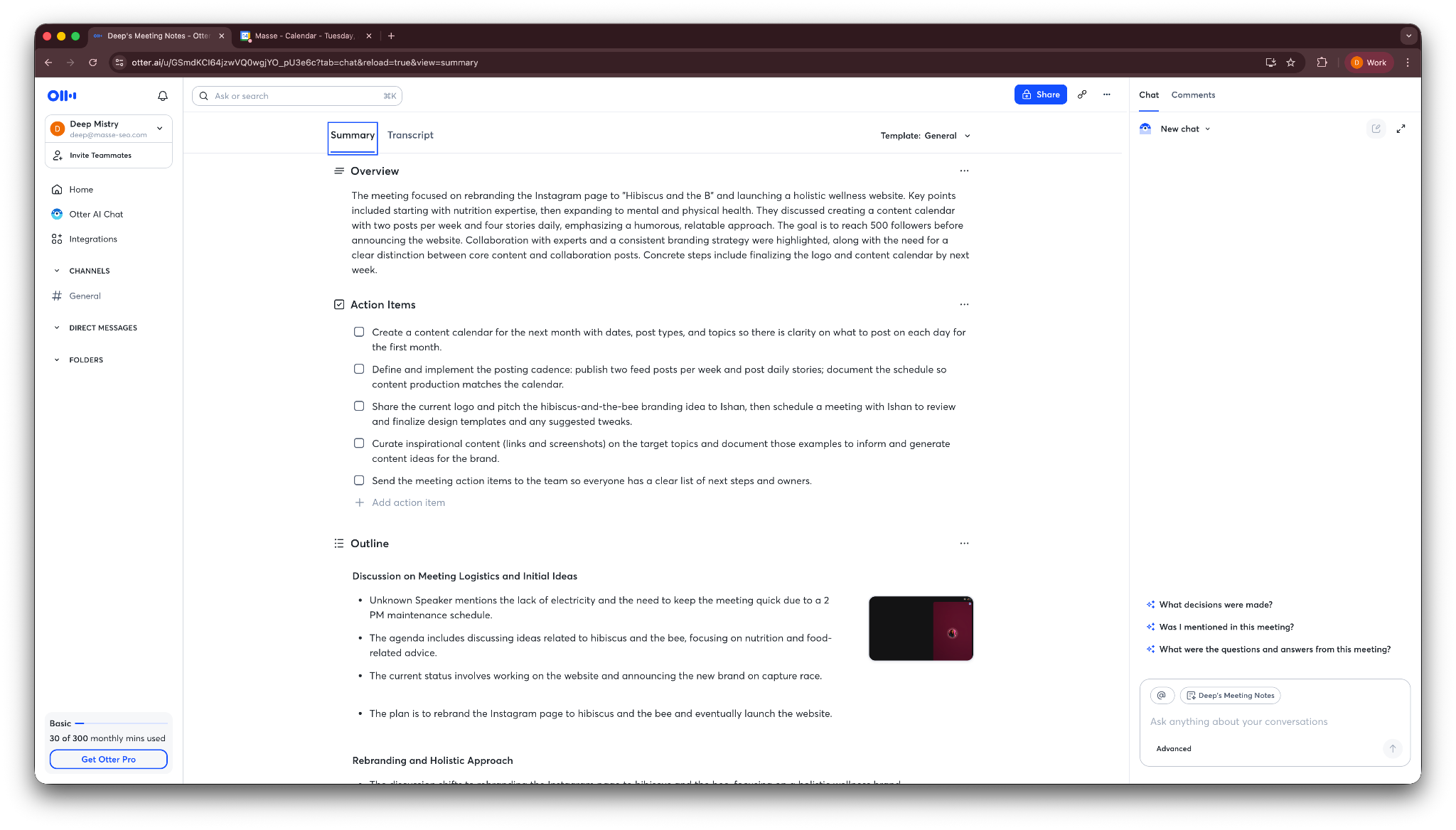
Otter did mess up a few times identifying the speaker, but it didn’t affect the overall summary and action items. I also played a podcast episode to add some background noise during the meeting. Otter ignored that and flagged only 2 words as unclear.
Key features
- An AI meeting notetaker that joins calls, transcribes the meeting, pulls action items, and creates summaries
- Otter app for bot-free meetings
- AI search to highlight certain topics or discussions
- Live captions during meetings
- Auto-sync with your work calendar
Pros
- Good quality transcripts and summaries
- Reduces the need to multitask during meetings
- Easily shareable transcripts and summaries with the ability to collaborate with team members
Cons
- Doesn’t pick up words with heavy background noise
- Mislabels speakers when two or more speakers talk over each other
Pricing
- Free plan with 300 minutes/month
- Paid plans from $16.99/user/month, billed monthly
5. Shortwave: Best for email management and quick follow-ups
Shortwave connects with your inbox and uses AI to sort emails, draft replies, and manage your calendar. Based on your preference, it’ll split your inbox into different layouts.
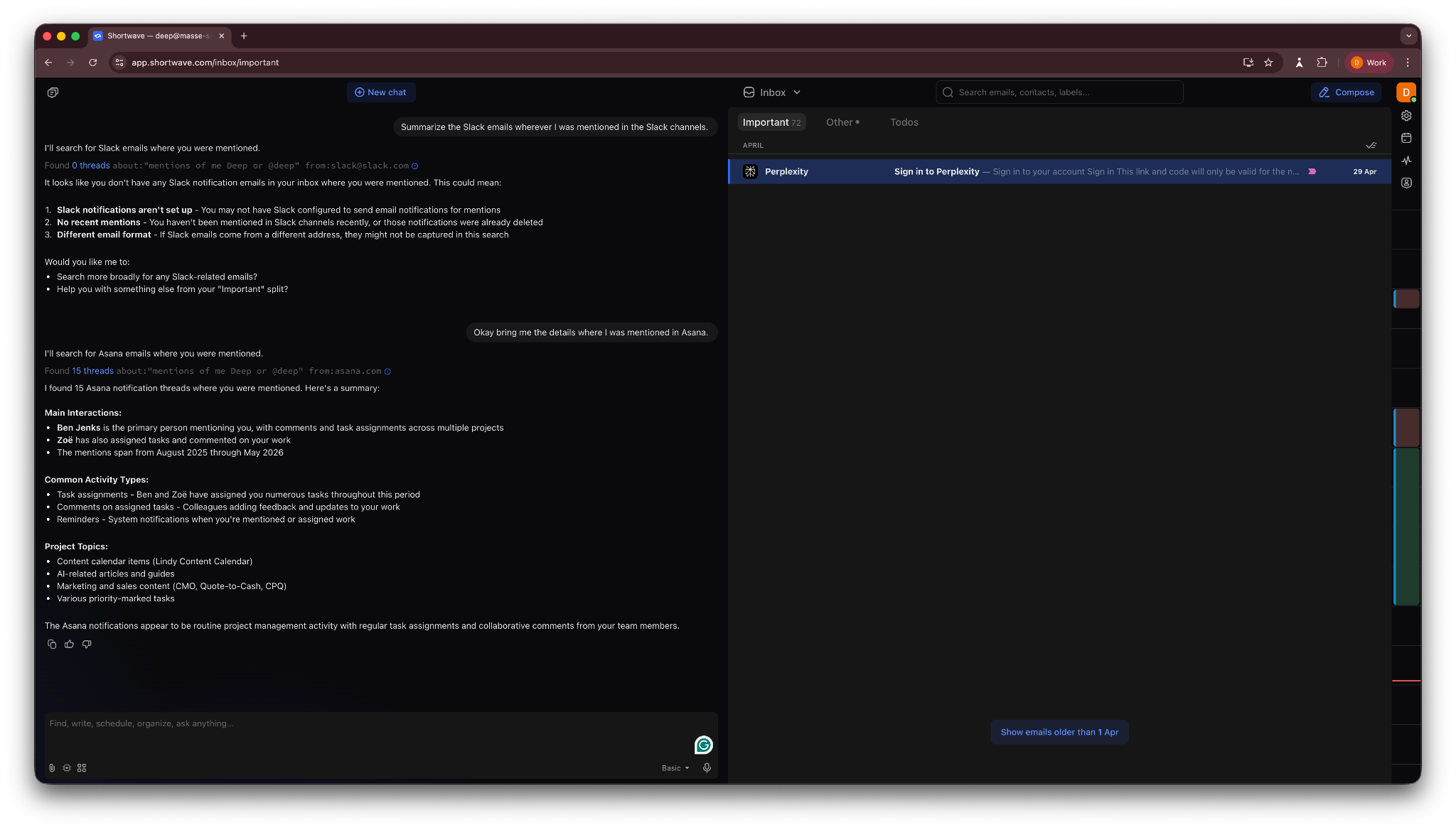
I asked Shortwave to divide all my emails into two categories: Important and Other. It neatly sorted the important emails, like verification emails, Slack mentions, and other emails that needed my attention.

I then asked the AI inside Shortwave to find Slack email notifications about my mentions. Because I’ve disabled Slack notifications via email, it didn’t find any. I wanted to check if it confused other Slack emails with mentions. And it didn’t.
So, I added another follow-up question. I wanted the details of my recent Asana mentions. Shortwave found those with ease, giving me context and names of teammates who mentioned me.
I also tried the AI draft feature to write an email quickly. I simply provided Shortwave AI with the topic of discussion for the email and the recipient, and hinted where I wanted the conversation to head. It wrote the email for me in 30 seconds.
The first draft was surprisingly good. Shortwave analyzed the previous emails, pulled context from my connected apps, and studied my writing style to draft an email in my writing style.
Shortwave doesn’t have a free tier, though. It does offer a 14-day free trial, but only after you add your card details. Also, the app feels like a normal inbox with AI as an afterthought. It’s just like a Gmail window, which is a good thing, but the AI part feels slightly lacking.
If it had some automation capabilities, it could have been the best AI email assistant for solo users.
Key features
- AI search to find information and context around emails
- Gives you the read status of emails
- Split inbox that sorts emails based on their content and importance
- AI chat that lets you ask anything about your inbox
- Compose first drafts using the built-in AI
Pros
- Clean and looks just like a normal email inbox
- AI features work well and are quick
- Almost no learning curve for solo professionals
- Helps you find and reply to priority emails quickly
Cons
- Limited AI capabilities that feel like an afterthought
- No email automation
Pricing
- No free plan, only a 14-day free trial
- Paid plans from $18/seat/month, billed monthly
6. Reclaim.ai: Best for protecting focus hours and calendar management
Reclaim.ai helps you protect your most productive hours of the day. It adapts to your schedule and lets you plan events or meetings in a way that doesn’t disturb your focused work time.

You can set up Reclaim quickly. Sign up using your email or your Google account. After that, it asks you to connect your calendar. You can also connect multiple calendars, helping you prevent your work commitments from clashing with personal commitments.
For example, if you commit a time slot on your personal calendar to see the dentist, Reclaim will know that and keep that slot blocked on your work calendar. It sounds like a small feature, but it avoids confusion and double-booking.

While setting it up, Reclaim also asked me how many hours I needed per week for focused work. As a working professional, I need around 40 hours for my core work. Once I add those, Reclaim will protect those time slots, pushing every other task around my focus hours.
I added my daily meditation routine to Reclaim, and it adjusted my schedule accordingly. Based on my preference, it moved parts of my focus hours to accommodate my meditation time in the morning.

I also connected Asana with Reclaim, helping me check on my tasks and their due dates without leaving Reclaim. That helped me manage my time better and prioritize tasks depending on the deadlines.
For individuals who don’t attend many meetings weekly, it may not be worth paying for Reclaim. The simple Google Calendar will work just fine.
Key features
- Ability to sync multiple calendars to avoid overlap
- Schedules tasks based on the priorities you set
- Recurring habits to help you stay consistent with them
- Integrations with popular task management, meeting, and calendar apps
Pros
- Keeps your calendar organized and protects your focus time
- Automatically adjusts your schedule based on the priority of the tasks
- Manages personal and professional commitments easily
Cons
- Not worth it for individuals who don’t attend many meetings
- Free plan feels limiting, even with light usage
Pricing
7. Saner.AI: Best for ADHD users wanting AI help with planning and notes
Saner.AI aims at users with ADHD who struggle to manage their tasks and notes. It uses AI to organize and present notes in a way that’s easy to manage and act on. It also has an AI assistant called Skai that can answer questions based on your saved notes.

I first tested the AI assistant with a saved note. Saner summarized the note, shared the overarching theme, and extracted action items for both the people mentioned in the note. I also got references for context.
Next, I was intrigued by Skai. It’s an AI assistant within Saner that offers suggestions and helps users with ADHD create and organize their notes. For example, it suggested moving the note into a folder, adding tags, and creating action items from the content.

When I opened the Focus Box, I found a single place to manage my ongoing tasks, while the calendar view shows notes tied to a specific day. It’s a small thing, but it makes the app feel more like a personal work hub than a basic notes app.
However, Saner’s interface has a lot of moving parts, like Inbox, Conversations, Knowledge, Focus Box, and Calendar. So, it may take a little time to figure out all the features and places.
Key features
- An AI assistant for asking questions about saved notes
- Automatic note summaries with references
- Skai Suggestions for tasks, tags, and folders
- Inbox for reviewing notes and suggested actions
- Focus Box for managing ongoing tasks
- Connectors for Gmail, Calendar, Drive, Slack, and Outlook
Pros
- Clean interface that suits ADHD users
- Helpful AI suggestions for task management and notes
- Works well as a personal knowledge hub
Cons
- Connectors need to be set up before the app becomes useful
- Only 100 notes allowed on the free tier, with a PDF size of 1MB/file
Pricing
- Free plan with up to 100 notes
- Paid plans from $12/month, billed monthly
8. Notion: Best AI assistant inside the Notion workspace
Notion offers AI capabilities inside its workspace where it can summarize documents, write content, attend meetings, generate transcripts, and more. You can also ask it to find information from your workspace, create agendas, or search the web for answers.

I used Notion AI to transcribe a Zoom workshop I attended online. It didn’t join the call as a participant; it just stayed open in the background on my computer and listened through the session.
About halfway through, I had to step away, so I left the Zoom call running with Notion AI still listening. When I came back, it had captured the rest of the session and generated a summary of what I missed.
The best part was that I didn’t have to scrub through the recording just to figure out what happened while I was away. Notion AI gave me a clean transcript, a concise summary, and a list of action items from the full workshop.
I wouldn’t treat it as a perfect replacement for reviewing the recording if every detail mattered, but as a way to catch up quickly, it worked better than I expected.

Notion’s AI also works well when you need to edit documents or find information inside large files. You can click on the bottom right AI icon and ask it anything about that page.
Here, I simply selected a flat one-liner and asked it to elaborate so that it wouldn’t sound so abrupt. It did that with ease and within seconds. For teams that work inside Notion and treat it as their knowledge base and project management tool, Notion AI is a lifesaver.

There are a few drawbacks, though. It only works inside Notion, and you only get complete access to Notion AI on the Business plan and higher. The lower-tier plans only give you a free, limited trial of the AI capabilities.
Also, for new users, Notion can demand a slight learning curve, especially if you intend to use it extensively for large projects.
Key features
- Integrates with popular everyday apps
- Meeting transcription and summarization without a meeting bot
- Ask AI to summarize documents, find information from your apps, or redraft content
- Research mode to understand concepts or find relevant sources
- Create knowledge bases, task trackers, content calendars, and more
Pros
- Reduces app switching as it works inside Notion
- Natural language instructions for most tasks
- Easy and intuitive to use
Cons
- Complete AI capabilities are only available on the Business plan and higher
- Overkill if you only use Notion for notetaking
Pricing
- Free trial of AI included with Free and Plus plans
- Business plans have complete access to AI, starting from $24/member/month, billed monthly
9. Siri: Best for users within the Apple ecosystem
Siri is Apple’s AI assistant that works exclusively on Apple devices like iPhone, MacBook, Apple Watch, and more. It can handle simple tasks across apps like adding reminders, playing your favorite track, starting a timer, and the like.

I use Siri almost every day while driving to request my favorite music tracks. It gets most of my requests, fumbling only when the track names are confusing, awkward, or resemble other tracks.
When that happens, I give Siri context like the artist, album, or any other relevant detail. After that, it finds the track with ease.
You can also control your home appliances with Siri if they’re compatible. I often ask Siri to turn on the TV and mirror my screen to view photos or videos.

Siri now also works with Apple Intelligence across apps like Notes, Mail, Messages, and more. In Messages, you automatically get transcripts for long voice messages and suggested replies. Apple Intelligence also helps with redrafting in Notes and Mail.
Apart from these use cases and a few more similar ones, Siri isn’t of much help. I tried using it for real productivity tasks like summarizing emails. It only read the email out loud.
Siri isn’t revolutionary, and only works with Apple devices. It’s fine for music, timers, and light AI content tasks. It’s secure and privacy-focused, but not as smart and capable as Gemini.
Key features
- Voice and text instructions in everyday language
- Simple activation with “Hey Siri” or “Siri”
- Works on the go and in Apple CarPlay
- Answers common, daily-task questions with ease
Pros
- Good voice detection and responses
- Convenient and useful for Apple users
- Suits those who value privacy and on-device AI apps
Cons
- Not as intelligent or capable as Gemini
- Limited to the Apple ecosystem and doesn’t suit professional use cases
Pricing
- No paid plans, free forever with Apple devices
10. Pi: Best for human conversations and light personal tasks
Pi is a chat-based AI assistant that tries to think and respond like a human. It claims to understand emotions and helps you with shopping, to-do lists, and decision-making scenarios.

I wanted to check the “emotional” and “human” claims of Pi, so I asked it some basic questions. Being a watch nerd and a young professional, I’d already bought 2 expensive watches and am considering a third one.
I asked Pi whether I should pull the trigger on the third watch. Mind you, the two watches that I bought already cost $12,000 combined. And the watch that I wish to buy costs around $11,000.
Pi responded like a supportive friend. It asked me what it means emotionally and whether it adds something new to my collection. It didn’t flag the monetary aspects until I highlighted them in the follow-up question.

If you’re looking for a logical, rational AI assistant you can chat with, Pi isn’t it.
You can also use Pi for shopping, to-do lists, and reminders. However, it doesn’t connect to any of your apps. So, your to-do lists and reminders will stay within Pi.
Also, there are no paid plans with better capabilities. So, Pi is limited to casual chitchat, brainstorming, and light task management, and doesn't fit into professional workplaces.
Key features
- Kind, supportive, and emotionally intelligent
- To-dos, reminders, and checklists for light task management
- Shopping assistance to find stores or online listings
- Daily AI-generated suggestions, prompts, and discussion starters in the Discover feed
Pros
- Good for brainstorming or ideation
- More empathetic and thoughtful than other AI assistants
- Excels at reflective conversations
Cons
- Not capable enough for professional use
- Niche and limited usage, unlike other generalist AI tools
Pricing
- Free to use, no paid plans listed as of now
How I tested these AI personal assistant tools
I tried more than 15 tools for different tasks to compile this list of the best AI personal assistant tools. I constantly handle work and personal tasks, so I know the pains users like me face. If these helped me during testing, they’d help the majority of the users.
I signed up for these tools, used them over a couple of weeks, and learned where they help individuals the most. Here’s what I looked for while evaluating them:
Ease of use
It’s the most important factor for me. Most professionals and solopreneurs aren’t technical people. If a tool demanded time to set up, required technical skills, or had a steep learning curve, I rejected the tool. The performance didn’t matter then.
I prioritized tools that you can set up quickly, are intuitive to use, and offer the maximum capabilities for the least amount of time spent on configuring them. These were the reasons why I rejected Make and Fathom.
Capabilities and use cases
Tools like Bixby or Alexa didn’t make it to the list because either their capabilities are inferior to the ones I shortlisted or they don’t offer much value outside their niche use cases. Bixby only works on Samsung devices, and Alexa doesn’t make sense in a professional setting.
The tools on this list offer clear value to their users. ChatGPT works best as a generalist tool, Zapier automates recurring workflows, and Otter excels at easy meeting notes.
Value
Finally, I prioritized tools with a usable free tier or a generous trial period. I considered the budgets of solo users, freelancers, and hobbyists equally while shortlisting tools. I wanted to compile a list where you get the most value for the money you spend.
Top tools for each use case
Each tool on this list fits into one or more core categories based on what it’s designed to help with. Here are the top tools for different applications:
Writing and research
These are the most flexible AI virtual assistants. They can help with writing, research, brainstorming, coding, summarizing files, answering questions, and more. These tools help you handle everyday tasks from a single place.
- Top picks: ChatGPT, Gemini
Productivity
These AI assistants handle specific tasks such as managing calendars, automating inboxes, capturing meeting notes, and handling repetitive operational work. Instead of trying to do everything, they excel at one particular use case.
- Top picks: Reclaim.ai, Otter, Shortwave
Everyday tasks
These assistants suit light users who need help with personal tasks for everyday convenience, like reminders, everyday questions, personal planning, and casual conversations.
- Top picks: ChatGPT, Siri
How to choose the right AI personal assistant
The right AI personal assistant is the one that fits your workflow and solves the problem that slows you down the most. An AI personal assistant can seem useful, can look impressive on paper, but won’t make sense if it creates more setup or friction in your day.
Here’s what to look at before you choose one:
Match the tool to your pain point
Start with the problem, not the feature list. You may need help managing your meetings. Others need better calendar control, a cleaner inbox, or faster ways to organize ideas.
If you want broad help across writing, planning, summarizing, and everyday tasks, a general-purpose assistant like ChatGPT or Gemini makes sense. If your main issue is meeting notes, tools like Otter are a better fit. If your schedule feels chaotic, Reclaim will suit you.
Decide whether you need a generalist or a specialist tool
Some AI personal assistants try to help with a bit of everything, while others focus on one narrow job and do it well.
General-purpose assistants are useful when your needs change often. They can help with planning, writing, brainstorming, summarizing, and light task support. Specialized assistants are better when you already know the bottleneck.
If you struggle the most with email overload, an inbox tool like Shortwave will be more useful than a broad AI assistant.
You can solve calendar management challenges with Reclaim. If your problem is keeping up with meeting notes and decisions, Otter will be the better choice.
Check how the assistant fits into your existing workflow
A good AI personal assistant should fit naturally into the tools you already use. If it only works well in isolation, you may end up doing extra work to make it useful.
If you work with Google Workspace most of the time, Gemini may feel more natural. If your work happens on Apple devices, Siri may still be the easiest option for reminders and quick actions. The closer the fit, the easier the adoption will be.
Plan for pricing as your usage grows
As you use your AI personal assistant extensively, it can get expensive, with higher credits and costlier plans. Some assistants charge per seat. Others offer better features behind higher tiers. Some start free but become more costly once you need more usage, integrations, or team features.
Here’s what you should ask: Do you need one assistant for one job, or do you need something flexible enough to cover multiple needs?
I’ve noticed that one broad assistant is cheaper and easier to manage. If you absolutely need dedicated AI assistants for different tasks, two tools that don’t overlap will do a good job.
Consider the learning curve before you commit
Tools like ChatGPT, Gemini, and Siri are easy to set up and use. You can start using them almost immediately. Tools like Reclaim and Lindy usually need more setup because they work best when connected to your calendar, inbox, or meeting stack.
That extra setup can be worth it if the tool solves a problem you deal with often enough. The best AI personal assistant should fit into your routine, solve a real problem, and save enough time to justify the effort.
Frequently asked questions
What is the best AI personal assistant in 2026?
The best AI personal assistant in 2026 depends on your use case. ChatGPT is the strongest generalist, Reclaim.ai leads for calendar management, and Otter is the pick for meetings.
ChatGPT is still the strongest general-purpose option for planning, writing, and everyday help. Reclaim is a better fit for calendar management, while Otter makes more sense if meetings are your main pain point.
Which AI personal assistants are free?
ChatGPT, Gemini, Otter, Zapier, Pi, Siri, Notion, Reclaim, and Saner are some of the free AI personal assistants.
What can AI personal assistants do?
AI personal assistants can handle a lot of your daily tasks that take up your time. You can then use that time for your core work. Depending on the tool, they can handle your communication tasks, planning, and research work.
You can use AI personal assistants to draft replies, summarize meetings, transcribe calls, protect focus time on your calendar, search across knowledge, and more.
Which AI personal assistants are best for work?
Zapier, Reclaim, ChatGPT, Notion, and Shortwave are the AI personal assistants for work tasks.
ChatGPT is the best all-rounder for writing, brainstorming, and task support. Notion works well if your team lives in docs, notes, and wikis. Shortwave is a strong fit for people who spend a big part of the day in email.
Which AI personal assistants are best for meetings?
Otter is the best AI personal assistant for meetings. It works well if you need help with transcription, summaries, action items, and live meeting chat. For the broader meeting workflow, like protecting prep time and scheduling, pairing it with a calendar tool like Reclaim.ai covers the rest.
Can AI personal assistants integrate with my workflow?
Yes, most AI personal assistants integrate with tools you commonly use every day, like calendars, email inboxes, meeting apps, note-taking apps, and more.
Are AI personal assistants secure enough for business use?
Yes, most AI personal assistant tools today are secure for business use and follow the industry standards for data security. Many publish SOC 2 or GDPR compliance and use enterprise-grade encryption. If you handle sensitive data, check each tool’s compliance certifications before adopting.
Do you need technical skills to use AI personal assistants?
No, you usually don’t need technical skills to use AI personal assistants, as they are no-code and suit non-technical users. You may need to figure out how to integrate your everyday apps with some of the tools, though.
Will AI personal assistants replace human assistants?
No, AI personal assistants won’t fully replace human assistants. But they will replace repetitive assistant work that takes up time and effort. AI personal assistants are good at drafting, summarizing, transcribing, scheduling, and routine follow-up.
However, for work that demands judgment, sensitive communication, and messy edge cases across people and teams, human assistants are still essential.
How do I choose the right AI personal assistant?
You choose the right AI personal assistant after considering your main bottleneck. Pick Reclaim.ai if your calendar is the problem, Shortwave if it is your inbox, Otter for meetings, and ChatGPT if you want one generalist for everything else.
Pick Reclaim if calendar management is the real problem. Pick Otter if your days are meeting-heavy. And pick Siri if you mainly want quick, lightweight help on Apple devices.










Blog
Related Articles
.avif)


%20(1).avif)

%20(1).avif)

%2520(1).avif)
The AI assistant that runs your work life
Lindy saves you two hours a day by proactively managing your inbox, meetings, and calendar, so you can focus on what actually matters.
